
Requirements:
- Duo is required for Citrix Remote Access for Epic, Training and the LCMC Health Network
- A smartphone (iOS 16 or later, Android 11 or later)
- Internet connection (WiFi or mobile data)
- Active LCMC Health account credentials
Part 1: Enroll in DUO
Part 2: Use Citrix to access your virtual orientation, EPIC training assignments and the EPIC EMR
Let's get started!
Application Installation
Step 1: Install Duo Mobile

- Search for Duo Mobile by Cisco/Duo Security.
- Tap Install (Android) or Get (iOS).
- Open the Duo Mobile app after installation.
Step 2: Start Setup on Your Computer
- On your computer, log in to the LCMC enrollment portal: https://lcmchealth.login.duosecurity.com/
- Enter your LCMC Health username and password*.
*If you do not know your password, call the IT Help Desk: (504) 702-HELP
Step 3: Select Get Started when prompted
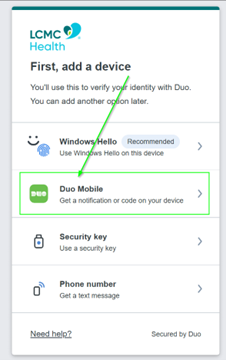
Step 4: On the next screen, prompting to add a device, select Duo Mobile
Step 5: Enter your phone number, then select Continue
Step 6: Confirm the phone number is correct, then select “Yes, it’s correct”
- If it is incorrect: select “No, I need to change it” or select Back and make the needed changes.
Step 7: After you confirm it is correct, select Send me a passcode
Step 8: You will receive a text message from Duo with a 6-digit passcode. On your computer, enter that passcode in the box shown on the screen, then click Verify to continue.
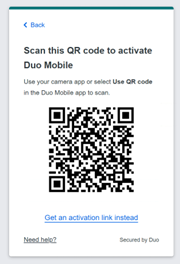
Step 9: Confirm that Duo Mobile is installed on your phone, then click Next on your computer. A new page will appear showing a QR code. Keep this page open because you will need to scan the QR code with your phone in the next step.
Connecting Your Phone with Duo Mobile
Step 10:
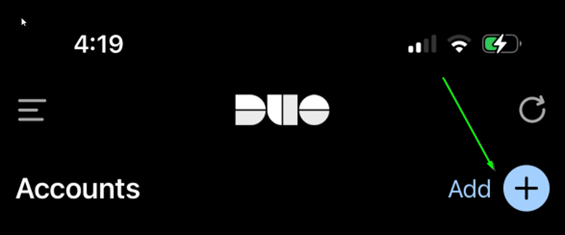
Open Duo Mobile on your phone and tap the Add + button in the upper right corner
Step 11:
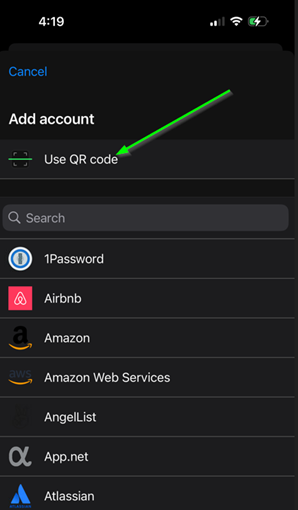
Select Use QR Code from the options
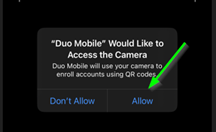
Step 12: With the QR code page open on your computer, use your phone to scan the QR code. If prompted, allow Duo Mobile to access your camera.
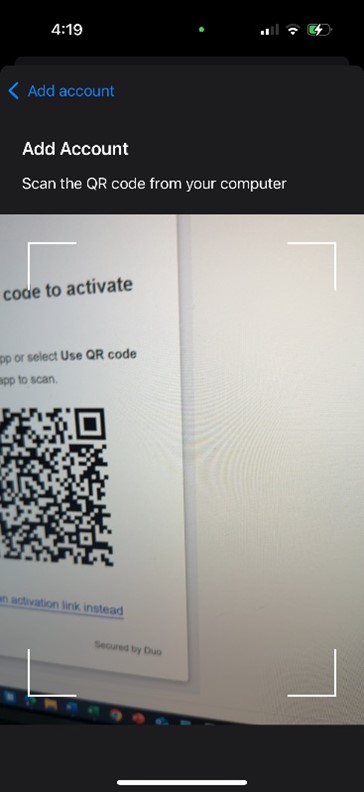
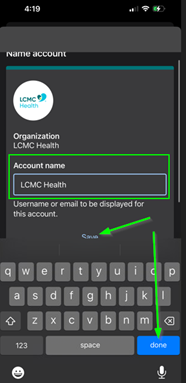
Step 13: After scanning the QR code, your phone will display the Account name screen. The name LCMC Health will appear automatically. Tap Done or Save to continue.
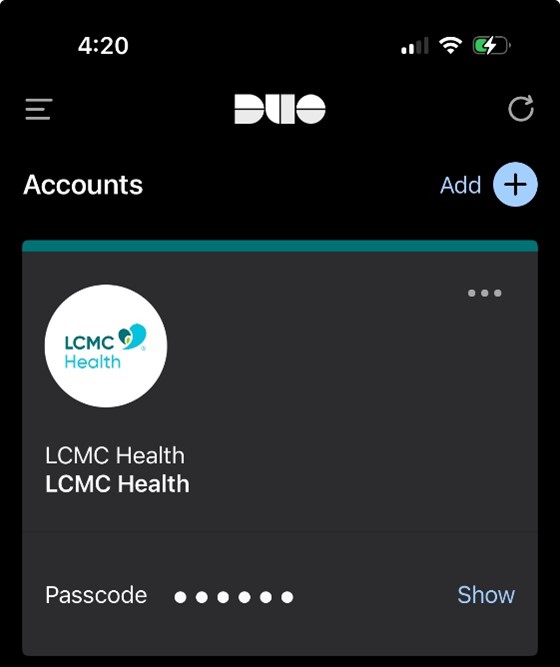
Step 14: Once saved, your LCMC Health account will appear in Duo Mobile.
Finish Setup and Confirm Enrollment
Step 15: On your computer, you will be asked if you want to add another device. Select I don’t want to add more devices.
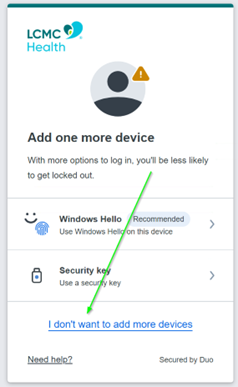
Step 16: A Setup completed notification will appear, followed by a prompt to Log in with Duo. Select this option to continue.
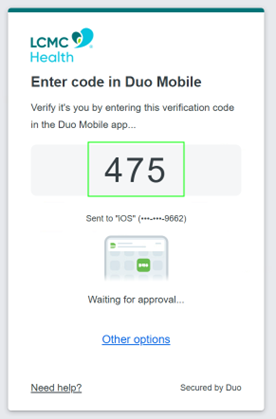
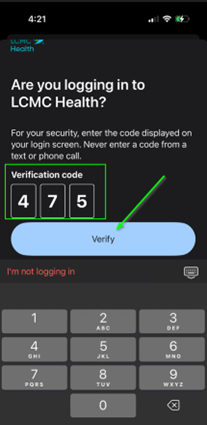
Step 17: A pop up will appear on your computer with a 3-digit code. Enter this code in Duo mobile on your phone and select Verify.
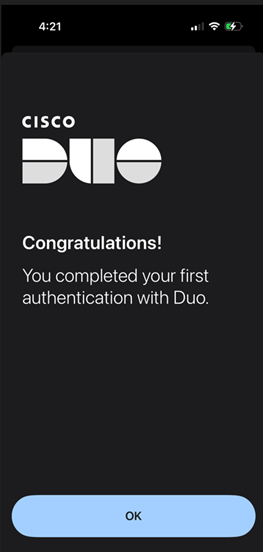
Congratulations!
High five!
You did it!

You have now completed Duo Mobile setup and successfully performed your first authentication!
Problems? Questions? Issues?
Please contact the LCMC IT Help Desk at:
(504) 702-HELP